
How to Switch Instagram to a Business Account (Easy Guide)
 Duhapa Dennis
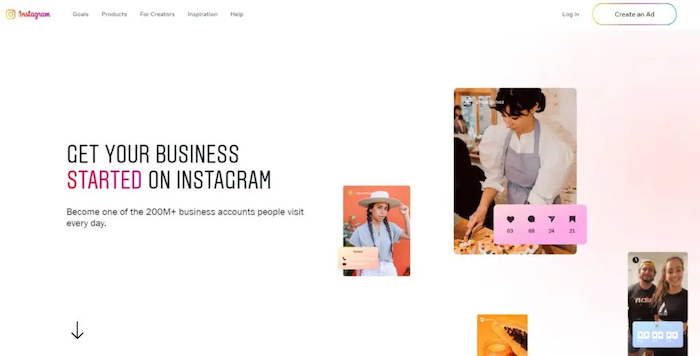
Ready to grow on Instagram? This guide walks you through the step-by-step process of switching your Instagram account to a business account. Unlock powerful tools like Insights, ads, and new contact options to build your brand.
Introduction
Instagram is a global marketplace, perfect for businesses to showcase products and connect with audiences. But if you're using a personal profile, you're missing out. Switching to a free Instagram Business Account unlocks a powerful toolkit, giving you vital analytics (Insights), professional contact options, the ability to run ads, and e-commerce tools like Instagram Shopping. It's the key to turning your profile from a personal diary into a professional storefront.
The Power of Instagram for Businesses
Instagram is one of the most powerful social media platforms globally. With billions of active users, it has grown from a simple photo-sharing app into a global marketplace. Its highly visual nature makes it the perfect place for businesses to build a brand, showcase products in a beautiful way, and connect with customers on a personal level. From small local bakeries to global fashion brands, companies are utilizing Instagram to establish communities, drive sales, and engage directly with their audience.
Why Switch to a Business Account?
If you are using a standard personal account for your brand, you are missing out on a huge opportunity. A personal account is designed for sharing with friends and family. A free Instagram Business Account, on the other hand, is a powerful toolkit designed specifically for companies. When you switch your Instagram to a business account, you unlock a new set of features, including advanced analytics ("Insights"), professional contact options, the ability to run ads, and even e-commerce tools like Instagram Shopping. It's the difference between a personal diary and a professional storefront.
Getting Started: The Pre-Switch Checklist
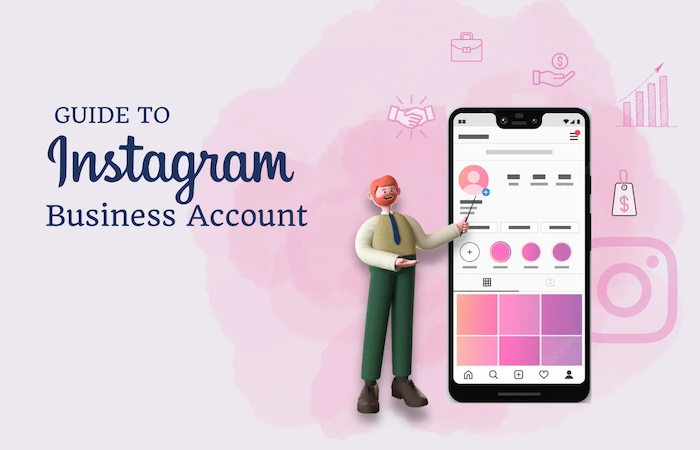
Before you tap that "switch" button, a little preparation can ensure the process is smooth and your new business profile starts strong.
Review Your Current Account
First, take a moment to look at your existing profile through the eyes of a new customer. Does it look professional and trustworthy?
-
Content Audit: Look at your grid. Are your existing photos, videos, and Reels of high quality and consistent with your brand's image? This is a good time to archive or delete any old, personal, or low-quality posts that do not fit your business identity.
-
Profile Optimization: Your profile is your digital storefront. Is your profile picture your business logo? Is your username easy to find and remember? Most importantly, is your bio clear, compelling, and descriptive? Your bio should explain what your business does and include a clear call-to-action (CTA), like "Shop our new collection at the link below!"
Link to a Facebook Page (Optional but Recommended)
While you can switch to a business account without a Facebook Page, it is highly recommended that you link one. Connecting to your company's Facebook Page unlocks the most powerful business tools, including:
-
Access to Meta Business Suite: Manage your Instagram DMs and Facebook messages in one unified inbox.
-
Advanced Advertising: You will need a linked page to run sophisticated, targeted ad campaigns using the powerful Facebook Ads Manager.
-
Instagram Shopping: Connecting a Facebook Page and product catalog is a key requirement for setting up Instagram Shopping features.
-
Cross-Posting: Easily share your posts, Stories, and Reels to both platforms at the same time.
If you do not have a Facebook Page yet, you can create one for free in just a few minutes on Facebook's website.
Understand the Requirements
There are two main requirements you must agree to when you switch:
-
Your Account Must Be Public: Business accounts cannot be private. If your account is currently set to private, Instagram will require you to make it public during the switch. This is necessary so that new customers can discover and view your content.
-
Agree to Terms: By using Instagram, you agree to Instagram's Terms of Use and Data Policy.
The Step-by-Step Switching Process
Ready to make the change? The process is simple and takes only a few minutes. Here is the official process for switching your account.
-
Click More (three horizontal lines) in the bottom-left menu, then select Settings.
-
Below For professionals, select Account type and tools.
-
Click Switch to professional account.
-
To set up a creator account, select "Creator." To set up a business account, select 'Business'.
-
Click Next.
-
Select your category. You can select a category that best describes your work.
Note: The category you choose does not determine whether you’ll set up a business or creator account.
-
Click Done. You’ll need to confirm that you want to switch to a professional account by clicking Continue.
You now have access to the professional dashboard, where you can view your insights and create and manage ads.
Continue to follow the steps below to finish setting up your business or creator account:
-
Add your business's contact details and click Save. To skip this step, select Don’t use my contact info.
-
Click Done to return to your profile.
You can choose what information is displayed on your profile at any time. To display or hide business information on your profile:
-
Click More, then select Settings.
-
In the left-hand menu below For professionals, click Professional account.
-
Click the checkbox next to Display category label to hide or display it.
-
Enter any business contact info you want displayed in your profile below Public business information.
-
Click the checkbox next to Display contact info.
-
Click Submit.
Unlocking Business Features
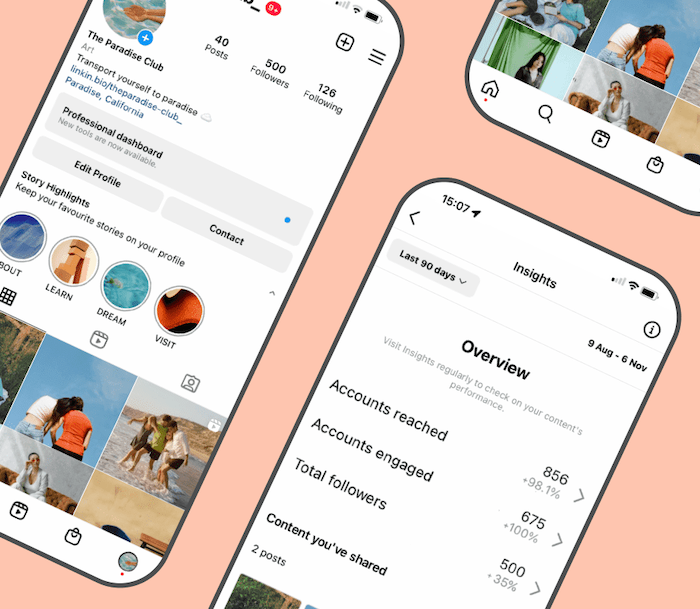
Now that you have switched, you have a powerful new set of tools at your fingertips. Here is what you can now do.
Instagram Insights
This is the most valuable feature you have just unlocked. "Insights" is your account's analytics dashboard. You can now see detailed data on:
-
Audience Insights: Who Are Your Followers? View their top locations, age range, and gender demographics. You can also see the days and times they are most active on Instagram, which helps you know the perfect time to post.
-
Content Performance: See how well each of your posts, Stories, and Reels is doing. You can track metrics such as Reach (the number of unique people who saw it), Impressions (the number of times it was viewed), and Engagement (likes, comments, shares, and saves).
-
Overall Account Growth: Track your follower count over time and see which pieces of content brought in the most new followers.
Contact Buttons and Call-to-Action (CTA)
Your profile can now act as a business card. You can add "Contact" buttons that allow users to tap to "Email" you, "Call" you, or get "Directions" to your physical store directly from the app. You can also add special Action Buttons (such as "Book Now" or "Order Food") by linking a third-party service, like a booking system or a food delivery app.
Promotions and Advertising
You now have the ability to run paid ads to reach people who do not follow you yet.
-
Boost Posts: This is the simplest way to advertise. If you have a post that is performing well, you can tap the "Boost Post" button on it, select an audience, set a budget, and run it as an ad to get more visibility.
-
Facebook Ads Manager: For much more control, you can use the professional Ads Manager tool. Here, you can create highly specific ad campaigns, target very niche audiences (e.g., "people who are engaged, live in Dubai, and are interested in luxury fashion"), and run ads in Stories and Reels.
Shopping Features (If Applicable)
If you sell physical products, you can apply for Instagram Shopping. This feature transforms your profile into a storefront. You can tag your products in your posts and Stories. When a user taps the tag, they can view the price and tap again to visit your website and make a purchase.
Quick Replies (for Direct Messages)
This is a huge time-saver for customer service. If you receive the same questions repeatedly in your Direct Messages (DMs), you can create Quick Replies. This allows you to save template responses (e.g., your store hours, shipping policy) and insert them into a chat with a simple shortcut.
Optimizing Your Business Account for Success

Switching your account is just the first step. To achieve real results, you need to utilize these new tools as part of a well-planned and strategic approach.
Content Strategy for Business
Your content is everything. You must post high-quality, professional photos and videos. Your captions should be engaging and written in a consistent brand voice. Use a smart mix of relevant hashtags to help new customers discover your posts.
Engaging with Your Audience
Instagram is a social network. You must be social!
-
Respond to comments and DMs quickly.
-
Use interactive stickers in your Stories, such as polls, Quizzes, and Q&As, to start conversations with your followers.
-
Collaborate with other local businesses or influencers in your niche to cross-promote each other.
Analyzing Performance and Adapting
Make it a weekly habit to check your Instagram Insights. See which posts got the most engagement. Look at what time your audience was most active. Use this data to do more of what works and less of what does not. Set clear goals for your account (e.g., "drive 100 website clicks per month") and track your progress.
Security Best Practices
Your Instagram account is now a valuable business asset. Protect it. Go into your security settings and turn on two-factor authentication. This adds an extra layer of protection to prevent hackers from accessing your account.
Common Issues and Troubleshooting
-
Unable to Switch? The most common reason is that your account is set to "Private." You must make it public before you can switch.
-
Business Features Not Showing? First, go to the App Store or Google Play Store and make sure your Instagram app is updated to the latest version. Second, be aware that some features (like Instagram Shopping or Action Buttons) are only available in certain countries.
-
Losing Personal Account Features? The only feature you "lose" is the ability to make your account private. All other features for posting, messaging, and creating content remain unchanged.
Conclusion
Switching your Instagram to a business account is a simple, free, and essential step for any business that wants to grow on the platform. As your DMs increase from ads and new followers, you may find you need a more powerful tool to manage all the messages. That is when a platform like Botcake can help, by providing a unified inbox for all your social media chats and allowing you to build intelligent automations. But your journey starts with this one simple switch. Follow the steps in this guide, make the change today, and start unlocking the full power of Instagram for your business.
Related blogs
Chatbot AI Messenger: Cách hoạt động, ứng dụng và triển khai
How to Set Up Meta Business AI on Messenger
Top E-commerce Use Cases of Meta Business AI

Discover how your business can connect with customers 24/7 with Botcake
- Automate your customer messaging flow
- React thousands with bulk marketing message campaigns
- Blend AI power seamlessly with your customer service